
DK222 Not Working? Common Problems and Easy Fixes
If DK222 is not working, the first step is to identify exactly what has gone wrong. An APK that will not install is different from an installed app that will not open, and both require different troubleshooting from a failed login, missing deposit, or pending withdrawal. Common problems can be related to your internet connection, Android settings, an incomplete APK file, outdated app data, incorrect login information, OTP delivery, payment processing, or a temporary service issue.
Avoid reinstalling the app, creating another account, or making another payment until you understand the problem. This guide covers the most common DK222 problems and practical checks you can perform without putting your account or payment information at unnecessary risk.
Why Is DK222 Not Working?
There is no single cause of every DK222 problem. First determine which situation best matches what you are seeing:
- DK222 APK will not download;
- APK downloads but will not install;
- app installs but will not open;
- app keeps crashing;
- screen is stuck loading;
- login is not working;
- OTP is not arriving;
- account is restricted;
- deposit succeeded but balance is missing;
- withdrawal is pending;
- or withdrawal shows completed but money has not arrived.
Once you identify the type of problem, you can troubleshoot it more accurately.
Check Your Internet Connection First
Before changing app settings, confirm that your internet connection works normally. Open another website or online service. If other services are also slow or unavailable, the problem may be with your connection rather than DK222.
Switch Between Wi-Fi and Mobile Data
If possible, try another connection. For example, switch from Wi-Fi to mobile data or from mobile data to a reliable Wi-Fi connection. If DK222 works on one connection but not another, that provides a useful clue.
Restart Your Connection
Turning mobile data or Wi-Fi off and back on can resolve some temporary connection problems. You can also restart your router if the issue affects your home network.
DK222 APK Not Downloading
If the APK download does not begin or stops before completion, check the browser and device first.
Check Available Storage
Your phone needs enough free space to download the file and complete installation. Delete unnecessary files or applications if storage is almost full.
Check Browser Downloads
Open your browser’s download section and see whether the file is:
- downloading;
- paused;
- failed;
- or completed.
Do not repeatedly download multiple copies if the first file has already completed.
Try Again on a Stable Connection
An interrupted internet connection can leave you with an incomplete APK. If you suspect the file is incomplete, remove that failed copy before downloading it again from the source you intend to use. For download-specific instructions, see the DK222 Download Guide.
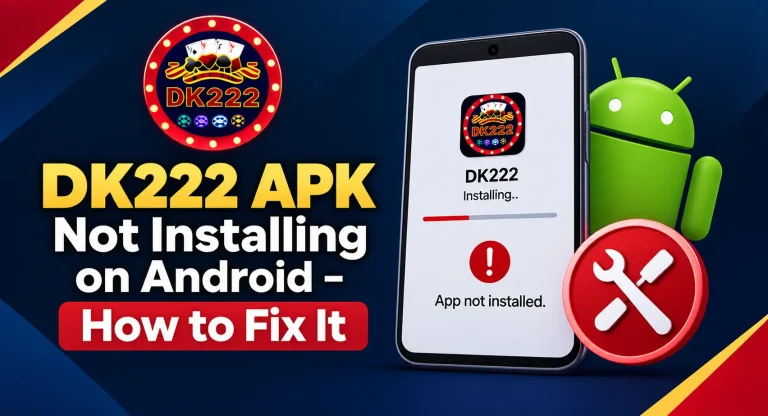
DK222 APK Not Installing
An APK can download successfully but still fail during installation. Several Android-related issues can cause this.
Installation Permission Is Disabled
Android may prevent your browser or file manager from installing apps from outside the normal app-store process. If you intentionally trust the APK source, Android may require you to allow installation for the particular browser or file manager you are using. Do not enable broad permissions unnecessarily.
APK File Is Incomplete
A damaged or partially downloaded file may fail to install. Delete the incomplete file and obtain a fresh copy after verifying the source.
Insufficient Storage
Installation requires available device storage in addition to the space used by the downloaded file. Free some storage and try again.
Existing App Conflict
If another version of the application is already installed, Android may encounter a package or signature conflict. Do not immediately delete the existing app if you are unsure of your account credentials. First, make sure you know how to access your existing account.
Android Compatibility
Older Android versions or certain device configurations may not support every APK build. Do not assume a fixed Android requirement from an old article. Check current compatibility information where available. For more detailed Android troubleshooting, read DK222 for Android – APK Installation & Access Guide.
DK222 App Installed but Not Opening
If installation completes but tapping the icon does nothing, start with simple troubleshooting.
Close and Reopen the App
Rem ove DK222 from recent applications and launch it again.A temporary process can sometimes prevent a normal startup.
Restart Your Phone
Restarting Android clears many temporary processes and can fix simple application problems.
Check Your Internet
If DK222 requires an online connection during startup, an unstable network may leave it stuck before the main interface loads.
Check for an Update
An older APK may stop functioning properly after platform changes. Check current download information before replacing your installed version.
DK222 Stuck on Loading Screen
A loading screen that never finishes can have several possible causes.
Test Another Connection
Switch between Wi-Fi and mobile data.
Wait and Retry
If the issue is temporary and service-related, repeatedly reinstalling the app may not help. Close it and try again later.
Clear Cache Carefully
On Android, you may be able to clear an application’s cache through system settings. Cache files are temporary data and clearing them can sometimes help with loading problems. Be careful not to confuse Clear Cache with Clear Data/Storage. Clearing application data can remove locally stored settings and login sessions. Make sure you know your login credentials before doing anything that may sign you out.
DK222 Keeps Crashing
If the app opens and then closes unexpectedly, check your device resources and application state.
Close Other Apps
Devices with limited memory may struggle when many applications are running simultaneously. Close unnecessary apps and reopen DK222.
Restart the Device
A restart can clear temporary memory problems.
Check Storage
Very low storage can affect application performance.Free some space if necessary.
Check for a Current Version
If your installed APK is outdated or damaged, a verified current version may resolve compatibility problems. Do not install random “fixed,” “premium,” or MOD versions simply because the normal app crashes.
DK222 Running Slowly
Poor performance can come from the phone, network, or service.
Try:
- closing unnecessary apps;
- using a stable internet connection;
- freeing device storage;
- restarting the phone;
- and checking whether the problem affects only DK222.
If several online apps are slow, investigate the network first.
DK222 Login Not Working
If the application opens normally but you cannot access your account, the problem is probably related to account access rather than installation.
Check Your Registered Information
Make sure you are entering the mobile number, username, or other account identifier associated with your existing account.
Check Your Password
Look for typing errors. If you genuinely cannot remember the password, use the available recovery process instead of repeatedly guessing.
Don’t Create Another Account Immediately
A login problem does not mean your original account has disappeared. Creating another account can complicate transaction history, bonuses, and recovery. For complete instructions, see the DK222 Login Guide.
DK222 Invalid Password Error
If you see an invalid-password message, verify the password carefully.
Check:
- uppercase and lowercase letters;
- accidental spaces;
- incorrect saved passwords;
- and whether you are using the correct registered account.
If the password is forgotten, use the current password-recovery option. Never pay another person to “recover” the password for you.
DK222 OTP Not Received
OTP delivery problems can affect registration, login, password recovery, or account verification.
Check Your Number
Make sure the number shown or associated with the account is correct.
Check Network Signal
SMS messages may be delayed when mobile coverage is weak.
Wait Before Resending
Do not press Resend repeatedly. Multiple codes arriving later can make it difficult to know which one is currently valid.
Check SMS Settings
Review blocked or filtered messages if your phone provides these controls.
Keep Your OTP Private
Never send an OTP to someone claiming they need it to fix your DK222 account. An OTP is an authentication credential.
DK222 Registration Not Working
If you are creating a new account and the registration form fails, check the information you entered.
Common issues can include:
- incorrect mobile number;
- password-format requirements;
- passwords not matching;
- OTP problems;
- required fields left empty;
- or a mobile number already associated with an account.
If the system says your number is already registered, try the login or recovery process before attempting another registration. See the DK222 Register Guide for detailed account-creation help.
DK222 Says Mobile Number Already Registered
This message usually indicates that the number is already recognized by the account system. If the number belongs to you, you may already have an account.
Try logging in.
If you cannot remember the password, use account recovery. Do not use another person’s number just to bypass the message.
DK222 Deposit Successful but Balance Not Showing
A payment issue should be handled differently from an app problem. If JazzCash or Easypaisa says your transfer was successful but your DK222 balance has not updated, do not immediately deposit again.
Check Your Wallet Transaction
Confirm:
- transaction status;
- amount;
- recipient;
- date and time;
- and transaction ID.
Check DK222 Deposit History
Look for the payment in your account’s transaction section where available. It may show a status such as pending.
Refresh Your Account
Reopen the wallet section or sign back in if necessary.
Keep Your Receipt
Save the JazzCash or Easypaisa transaction reference until the problem is resolved. For detailed troubleshooting, read the DK222 Deposit Guide.
DK222 Deposit Pending
A pending deposit may still be undergoing processing or verification. The word Pending does not identify the exact cause. Do not send another payment solely because the first transaction has not yet appeared in your balance. Check both your payment wallet and DK222 transaction history. If necessary, contact support with the transaction ID and other non-secret payment details.
DK222 Withdrawal Pending
If your withdrawal request remains pending, first open your withdrawal history.
Check:
- amount;
- payment method;
- receiving number;
- request time;
- and current status.
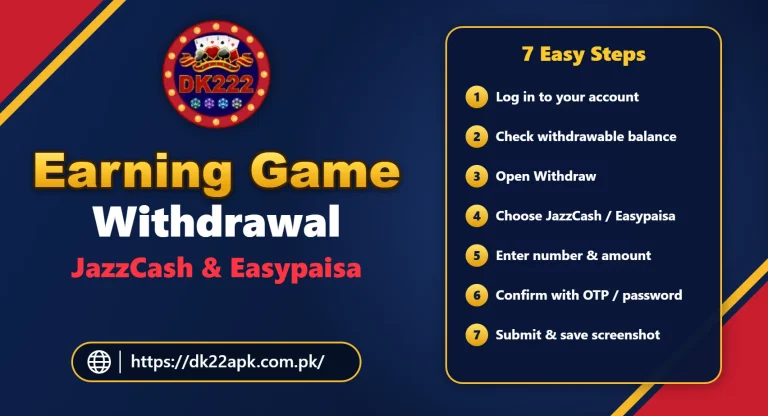
Avoid submitting repeated withdrawal requests unless the original transaction has reached a clear final state or the platform specifically instructs you to do so. For more information, see the DK222 Withdrawal Guide.
DK222 Withdrawal Completed but Money Not Received
A completed status on DK222 does not mean you should ignore the receiving wallet. Check your JazzCash or Easypaisa history. Make sure you are looking at the same wallet number used in the withdrawal request. Keep the DK222 withdrawal reference and compare:
- amount;
- receiving number;
- status;
- and transaction time.
If the funds remain missing, report that specific transaction through the appropriate support process. Never send your wallet PIN or OTP to investigate it.
DK222 Withdrawal Cancelled or Failed
If a withdrawal is cancelled, rejected, or failed, read any explanation shown with the transaction. Possible factors can include incorrect receiving information, current account requirements, promotional conditions, or transaction limits. The actual reason should be determined from the specific transaction rather than guessed. Correct the identified problem before submitting another request.
DK222 Bonus Not Showing
If you expected a bonus but cannot see it, first check the conditions of the promotion.
Ask:
- Was your account eligible?
- Was a qualifying deposit required?
- Did you use the correct promotion?
- Was a claim action required?
- Has the offer expired?
- Were all referral requirements completed?
Do not assume every promotion is automatically credited. For more information, see the DK222 Bonuses and Rewards Guide.
DK222 Bonus Showing but Cannot Withdraw
A displayed bonus may not be the same as immediately withdrawable cash. Check the current promotion for wagering, turnover, eligible-game, expiry, or other withdrawal requirements. Do not keep depositing money simply because someone tells you another deposit will automatically unlock the bonus.
DK222 Not Working After Update
If the problem began after an update, first confirm that the update itself completed correctly.
Restart the App and Phone
This can resolve temporary post-update issues.
Check Your Login
An update may sign you out. Use your existing account credentials instead of creating a new account.
Verify the APK Source
If the updated file came from an unfamiliar source, be cautious about entering your real account credentials.
Don’t Downgrade Randomly
Installing an older APK over a newer version can create compatibility or package problems. Only change versions when you understand what file you are installing.
DK222 Not Working After Reinstalling
Reinstalling can remove locally saved information such as login sessions. That does not necessarily mean the online account has been deleted. Try logging in using your existing registered information. If you forgot your password, use recovery rather than creating a duplicate account.
DK222 Not Working on iPhone
Remember that an Android APK cannot normally be installed directly on iOS. If you are trying to open an APK file on an iPhone, the issue is not necessarily a DK222 malfunction. APK is an Android application format. iPhone and iPad users should verify the currently supported iOS or browser-access method. See DK222 for iOS – iPhone and iPad Access Guide.
DK222 Not Working on PC
An APK is also not a native Windows EXE application. PC users may require a supported browser method or compatible Android environment depending on current access options. If an unknown website tells you to download a “DK222 Windows EXE,” verify it carefully before running the file.
For PC troubleshooting, see the DK222 for PC Guide.
Should You Reinstall DK222?
Reinstallation can help when an app installation is damaged, but it should not be your first response to every problem.
Before uninstalling:
- know your registered mobile number;
- know your password;
- make sure you can access account recovery;
- record unresolved transaction IDs;
- and check whether the problem is actually account- or server-related.
Reinstalling will not necessarily fix a pending deposit or withdrawal.
Will Reinstalling DK222 Delete My Account?
Removing an application from a phone does not necessarily mean the online account itself is deleted. However, reinstalling can remove locally saved login information. That is why you should know your credentials before uninstalling the app. If you have an unresolved payment, save the transaction details first.
Should You Clear DK222 App Data?
Use caution.
Clearing cache and clearing application data are different actions.
Clearing cache generally removes temporary files. Clear Data/Storage can reset local application information and sign you out. Do not clear app data if you do not know your login and recovery details.
Is DK222 Down?
If the app suddenly stops working for many functions at once, a temporary service problem is possible. However, you should not assume there is a platform-wide outage based only on your own device.
First test:
- your internet connection;
- another device where appropriate;
- the current access method;
- and whether only one DK222 feature is affected.
If only payments are affected, investigate the payment transaction rather than reinstalling the whole app.
What Not to Do When DK222 Stops Working
Troubleshooting mistakes can create bigger problems than the original error.
Avoid:
- downloading random MOD APKs;
- installing “DK222 hack” files;
- paying strangers to fix an account;
- sharing passwords;
- sharing OTPs;
- giving anyone your JazzCash or Easypaisa PIN;
- repeatedly depositing when balance is missing;
- creating multiple accounts to bypass login problems;
- and deleting transaction records before a payment issue is resolved.
How to Contact Support About a Problem
If basic troubleshooting does not resolve the issue, use the support method currently provided by the platform. Explain the problem clearly. For a payment issue, useful information may include:
- transaction type;
- amount;
- date and approximate time;
- transaction ID;
- current status;
- and a screenshot with sensitive information hidden.
For account problems, explain the error message you see.Never include your password, OTP, JazzCash PIN, or Easypaisa PIN. See the DK222 Customer Support Guide for more help.
Quick DK222 Troubleshooting Checklist
Before taking more complicated action, check these points:
- Confirm your internet works.
- Restart the app.
- Restart your device.
- Check available storage.
- Verify your login details.
- Check whether the APK is complete and appropriate for your device.
- Review the exact error message.
- Check transaction history for payment problems.
- Keep receipts and transaction IDs.
- Contact the appropriate support process if the issue remains unresolved.
Do not reinstall or send another payment until you understand whether either action is relevant to the problem.
Frequently Asked Questions
Why is DK222 not working?
The cause can vary. Internet problems, Android settings, APK issues, incorrect credentials, OTP delays, device compatibility, or temporary service problems can all affect access.
Why is DK222 APK not installing?
Possible causes include insufficient storage, an incomplete APK, installation permissions, Android compatibility, or a conflict with an existing installation.
Why is DK222 not opening after installation?
Restart the app and phone, check your internet connection and storage, and verify whether the installed APK is still compatible with the current service.
Why can’t I login to DK222?
Check your registered information and password. If you cannot remember your password, use the available recovery option rather than creating another account.
Why am I not receiving the DK222 OTP?
Check the registered mobile number, mobile signal, and SMS filtering. Wait before requesting another OTP and never share a received code with another person.
Why was my DK222 deposit successful but balance is not showing?
Check your JazzCash or Easypaisa transaction status, recipient, amount, and transaction ID. Review DK222 deposit history and investigate the existing payment before depositing again.
Why is my DK222 withdrawal pending?
The transaction has not yet reached a final state. Check its current status, receiving details, and any account messages. Avoid creating duplicate requests unnecessarily.
Will reinstalling DK222 fix every problem?
No. Reinstallation may help with certain application problems, but it will not necessarily fix login, OTP, deposit, withdrawal, or service-side issues.
Related DK222 (DK22) Guides
- fix DK222 APK not installing on Android
- DK22 login and account access guide
- DK222 customer support options
- DK222 for Android installation guide
- deposit successful but balance not showing
- DK222 (DK22) game download guide
- DK222 account blocked or suspended – reasons and fixes
Final Thoughts
When DK222 is not working, identify the exact problem before trying random fixes. APK installation errors, app crashes, login failures, OTP delays, missing deposits, and pending withdrawals are separate issues and should be handled differently. Start with simple checks such as your internet connection, device storage, app restart, credentials, and transaction history. Keep payment receipts and account-recovery information before reinstalling or clearing application data. Most importantly, do not turn a technical problem into a security or financial problem. Avoid random MOD APKs, duplicate payments, fake support accounts, and anyone asking for your DK222 password, OTP, JazzCash PIN, or Easypaisa PIN.

8 Comments